VII. Safemesh remote_control manual
* * *
> **This document is a manual for remote connectivity features for the SafeMesh system**
> **Adaptation system version**: V1.0.0
> **Document version**: V1.0
> **Release date**: January 1, 2026
> **Published by**: EFFORT
* * *
# Document revision records
| Version number | Revision date | Summary of revisions | Reviser | Reviewer |
| --- | --- | --- | --- | --- |
| V1.0 | 2026-1-1 | Initial release | Michel | Shyne |
* * *
# 1\. Preamble
## 1.1 Document Objectives
* Introduce users to the remote connectivity scheme provided by SafeMesh for remote access control capabilities.
## 1.2 Target audience
* Project manager
* Internet of Things operation and maintenance personnel, IT facility operation and maintenance personnel
## 1.3 Document Scope
* Introduction to remote connection functions
## 1.4 Related Documentation
* Prerequisite Document: Software Installation and Configuration Manual
* Related document: Software User Operation and System Administration Manual
##
2\.1. FunctionFunctional descriptionDescription
*- WithBy using the remote control
feature,function, you can access
athe remotelocally internetdeployed software system
deployedon locally.the *remote Internet.
- In the office,
you can access different regional system software
can be accessed by entering a specific domain name
inthrough youra browser.
*- The content of
theremotely remote accessaccessed web
pagepages is the same as
thethat on-premisesof locally deployed web
page,pages, and the data is
also shared.
##
3\.2. Usage requirements
*- Warning::warning: System version number >= 1.0.
20.20 *.
Warning:- The:warning: SafeMesh system
ishas been installed locally.
*- Warning::warning: The remote control
featurefunction can only be enabled within the
LANlocal area network where the system is deployed.
*- Warning::warning: The local area network (LAN)
on whichwhere SafeMesh is installed must have
accessthe ability to
access the Internet for the remote control function to
functionwork.
properly.- * Warning::warning: Once
the remote
control function is turned
off,off remotely, remote control
iscannot notbe possibleperformed unless
the remote control
function is enabled within the
LANlocal area network where the system is deployed.
##
4\.3. StepsUsage to usesteps
###
4.3.1 Configuration page

configuration path.png](http://13.222.61.26:6875/uploads/images/gallery/2025-12/Rhk1-configuration-path.png)path
Configure
the path
Open the local system and
go toenter the system configuration page.
Path:
SettingsSetting -> System
SettingsSetting -> Remote Connection
###
4.3.2 First
Timetime Useuse Featurefunction

First-time use.png](http://13.222.61.26:6875/uploads/images/gallery/2025-12/FM72-first-time-use.png)use
First
use
When the remote control
featurefunction is first enabled, a prompt
popswill upappear because there
isare no
activationactivated filefiles on the
localhost.local You'llhost.
You need to follow the prompts to send the local key (and
your desiredthe domain
name)name you want) to
yourthe system provider.
YouWhen the system supplier prepares the activation file and sends it to you, you can upload the activation
file when the system vendor is ready to send it to you.file.
###
4.3.3 Select
Activateactivation Filefile

Select activation file.png](http://13.222.61.26:6875/uploads/images/gallery/2025-12/YiG3-select-activation-file.png)file
Select
Activate File
After receiving the activation file, click "
Clickclick to upload activation file" and select the activation file.
###
4.3.4 Upload
Filesfile
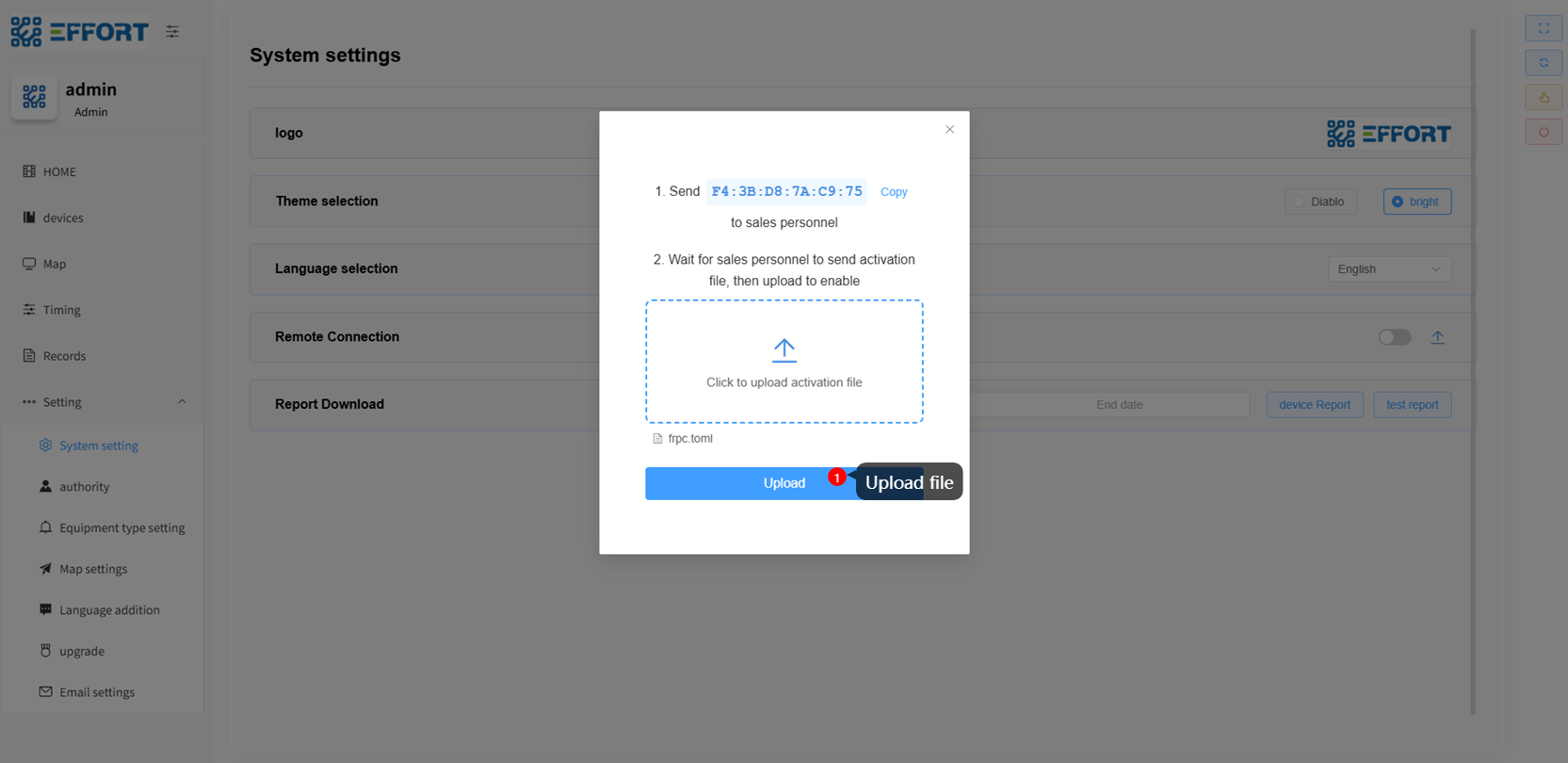
Upload filesfile
Click
"Upload"'Upload' to upload the activation file.
###
4.3.5
ConfigurationThe configuration page after uploading the activation file
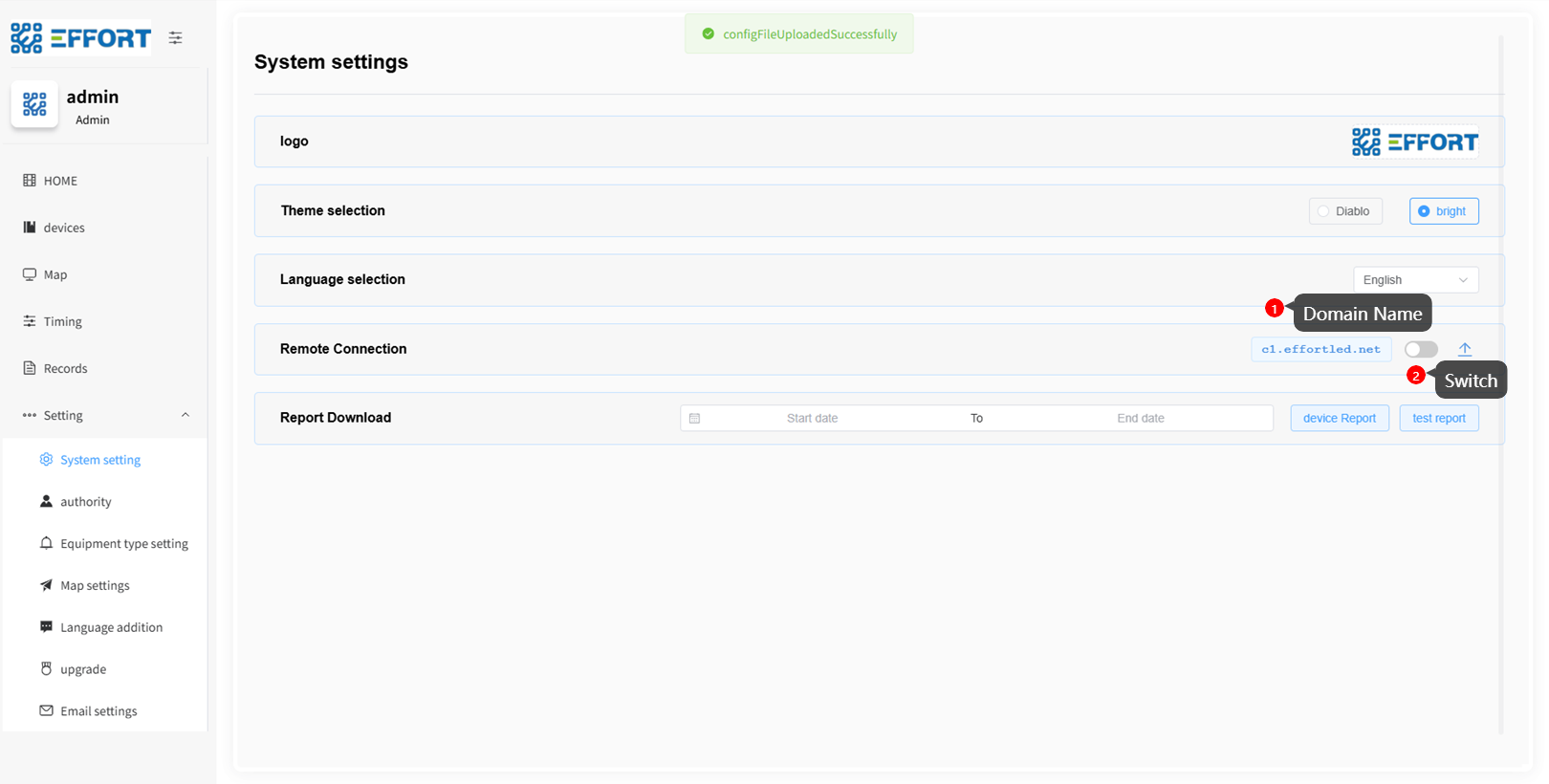
After configuration
You can see
the remote access
domainsdomain name marked
as 1 on the page.
The button
markedlabeled 2 can be used to
toggleturn on or off the
function on and off.function.
###
4.3.6 Open
Functionsfunction

enable function.png](http://13.222.61.26:6875/uploads/images/gallery/2025-12/gsc6-enable-function.png)function
Enable
functions
Click
on the button to activate the
feature.function.
You can click the back button to change
the configuration.configurations.
###
4.3.7
Remote Access via Domain Names
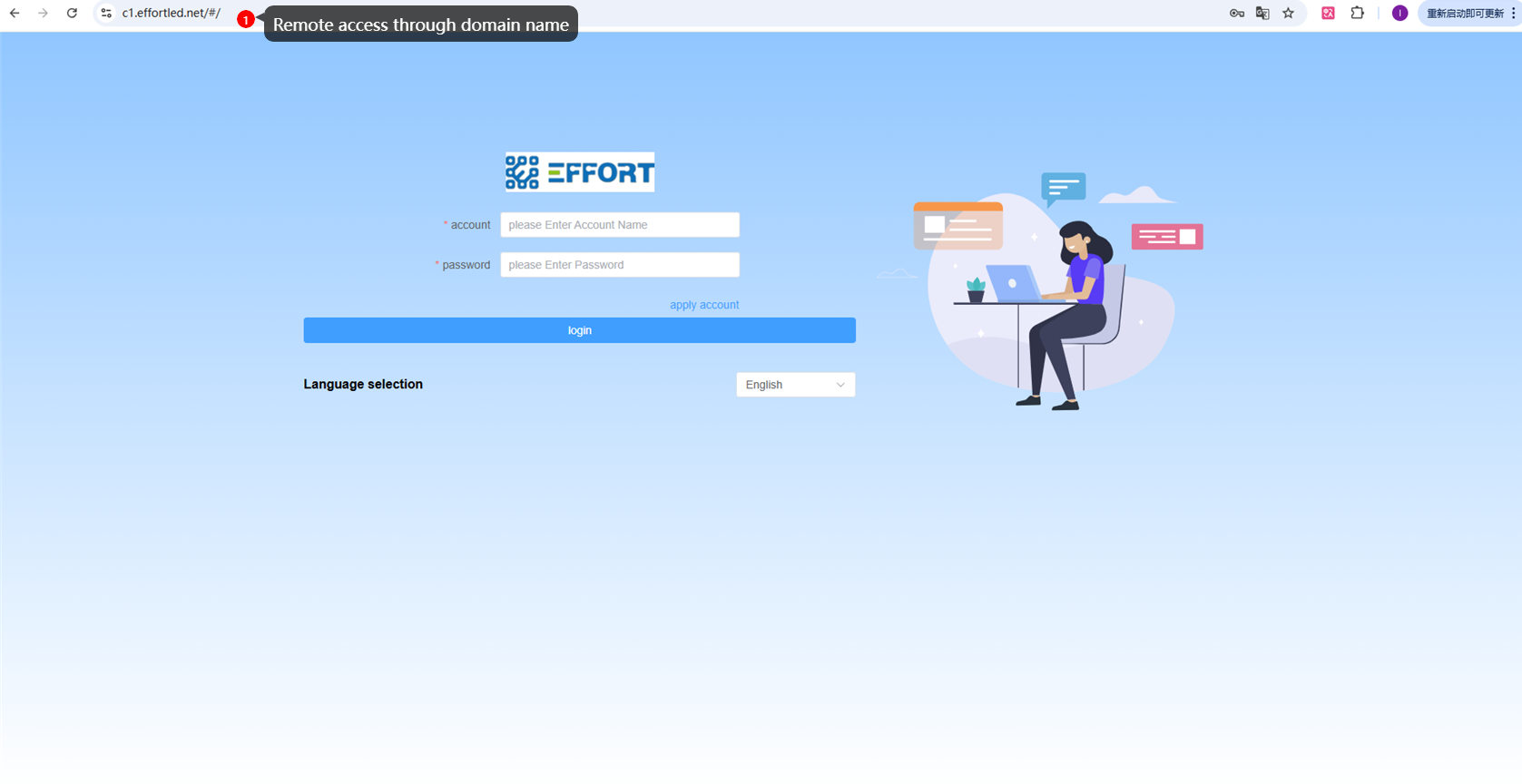 Remote access
Remotethrough domain name

remote access
is
possible
byBy entering the domain name
intoin the
browser.browser, remote access can be performed.
##
5\.4 FAQsQ&A
```Q:No Q1:无激活文件activation A1:请与系统销售方沟通并提供相关信息,以便后续获取激活文件file
Q2:已上传文件但仍无法访问A:Please A2:请按以下步骤检查:communicate with the seller of your system and provide relevant information to obtain the activation file later.
Q:I have uploaded the file but still cannot access it
A:Please check the following steps:
1.
确认上传激活文件后,已点击配置页面的开关按钮启用远程功能。 Ensure that after uploading the activation file, you have clicked the switch button on the configuration page to enable the remote function.
2.
检查安装 Check if the local network where SafeMesh
的本地网络是否能正常访问互联网。is installed has normal Internet access.
3.
检查本地防火墙或网络安全策略是否阻止了 SafeMeshCheck 的出站连接。if ```the local firewall or network security policies are blocking SafeMesh's outbound connections.
##
6\.5 Technical support
*- Technical support
email: [email:technical@effortled.
com](mailto:technical@effortled.com)com
