Software installation and configuration manual
# Software installation and configuration manual
##### **I. Cover**
* Product/System Name Logo
* Document Title: << Software Installation and Configuration Manual >>
* Applicable product/system version
* Document version number (e.g., v1.0)
* Release date
* Company Name & Logo
##### **II. Documentation Revision Record**
| version | Date | Revised content | Role tagging | Reviser |
| --- | --- | --- | --- | --- |
| v2.0 | 2023/10/20 | Operations and management functions are combined | 👤⚙️ | Zhang Gong |
##### **III. Table of Contents**
##### **IV. Preamble**
###### **4.1 Document Objectives**
Provide users with step-by-step software installation, initialization configuration, and basic validation
* Guide the completion of software installation, initialization configuration, and basic verification
###### **4.2 Target audience**
System Administrator/IT Engineer
###### **4.3 Document Scope**
* Software installation steps
###### **4.4 Related Documentation**
* Prerequisite Documentation: System Overview and Installation Guide (Must-Read)
* Parallel Documentation: Hardware Connection and Deployment Guide
###### **4.5 Symbolic conventions**
* ⚠️ Indicates key considerations
* i️ Tip information
* ▶️ Indicates the start of the operation step
##### **V. Pre-Installation Preparation** *(echoes Chapter V of the Overview Guide).*
###### **5.1 System Recommended Configuration**
* **服务器 CPU**:intel® Core™ i5-6400
* **Server RAM:** 8G
* **Server storage**: 128G
* **Server OS**: Windows 11 - 64bit
###### **5.2 Obtain installation resources**
* Get the installation package from your account manager
###### **5.3 Network and Security Configuration**
| ports | agreement | Uses: | Firewall requirements |
| --- | --- | --- | --- |
| 3000 | TCP | server | Inbound/outbound is allowed |
| 3547 | UDP | MQTT communication | Inbound/outbound is allowed |
| 3548 | UDP | OTA upgrades | Inbound/outbound is allowed |
| 8012 | TCP | client | Inbound/outbound is allowed |
| 8189 | TCP | Dongle driven | Inbound/outbound is allowed |
| 13306 | TCP | database | / |
⚠️ The above ports are required for the system, please note port conflicts
⚠️ Firewall requirements need to be manually configured by the user
⚠️ When installing the system, please turn off the antivirus software or add the software to the trust zone: you need to create a directory first, put it in the trust zone, and then install the software into this directory.
* **Network stability requirements**: It is recommended to have a delay of <30ms and a packet loss rate of 0%, and the system is running in a network with a high packet loss rate, and the user operation command cannot be issued to the device.
##### **VI. Software installation process**
###### **6.1 Installation process diagram**

###### **6.2 Permissions and Dependencies Check**
* Admin privilege verification
Windows: On the cmd command line, type:
```html
whoami /groups | findstr "Administrators"
```
If the output includes `Administrators`, the user has administrator privileges.
Linux: Enter on the command line
```bash
whoami
```
If the output is root, it means that you have administrator privileges.
* Dependency library installation checklist
1. Nodejs
2. Mysql
3. Vikey
4. Microsoft Visual C++ Redistributable
i️ The above environment will be installed automatically when the system is installed, and users do not need to install it themselves.
###### **6.3 Environmental installation**
▶️ **Step 1**: **Launch the installation wizard** by double-clicking on the infinite-win-1.0.19-x64.exe

▶️ **Step 2**: Click Next

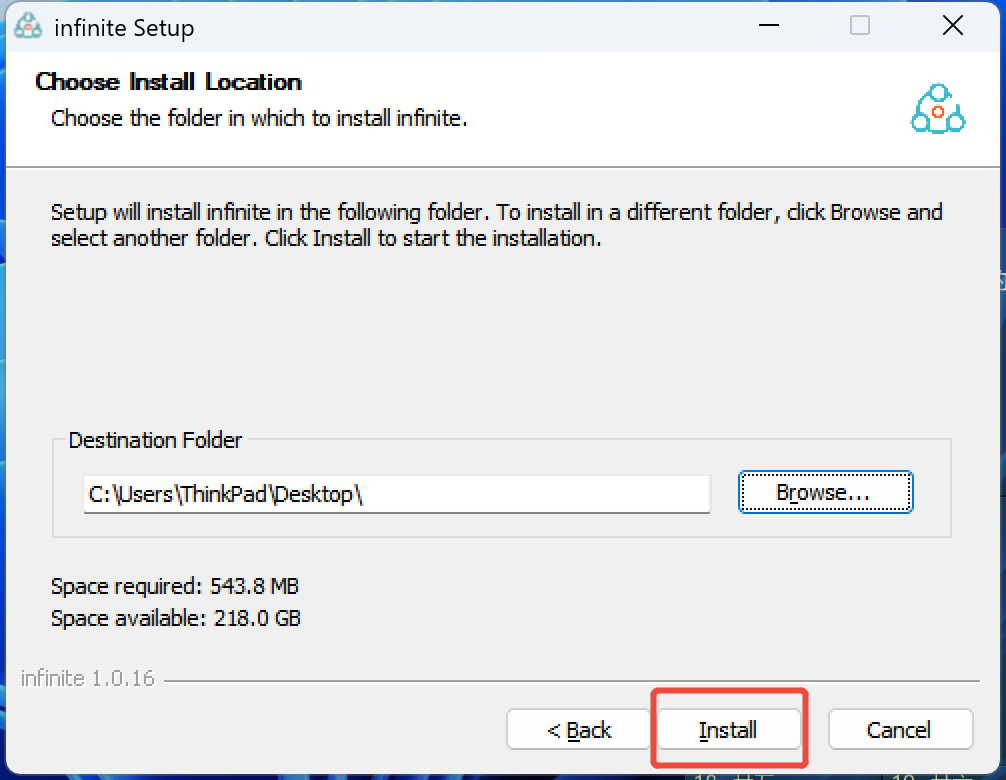
▶️ **Step 3**: Configure the **installation path and click Install**
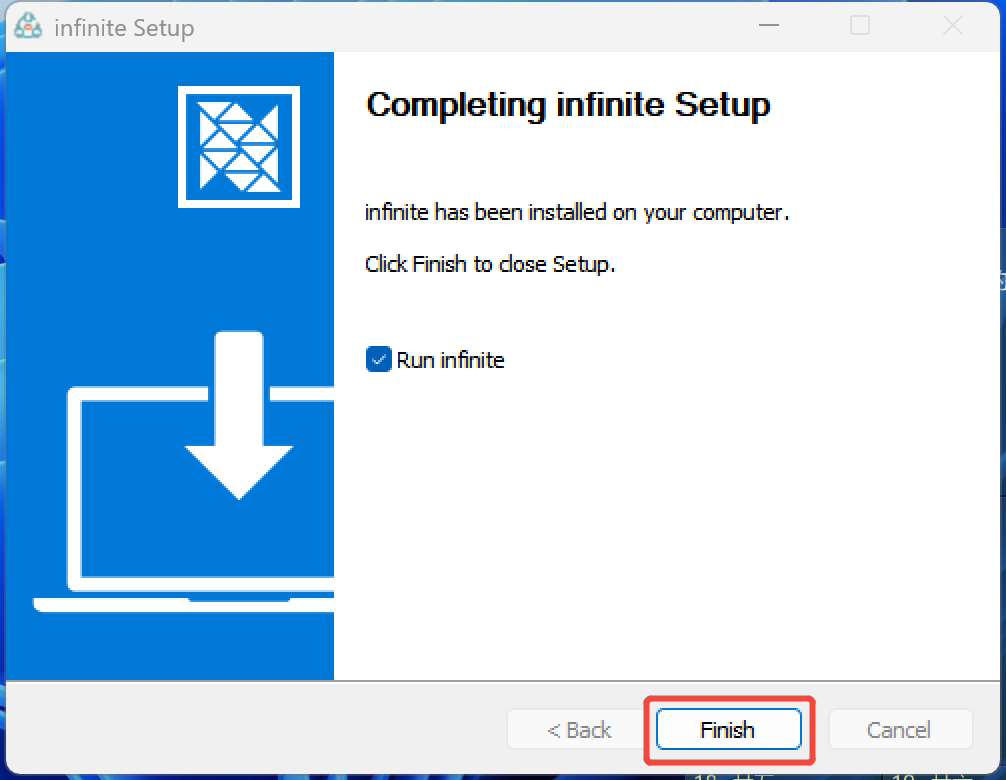
▶️ **Step 4**: To complete the installation, click Finish
###### **6.4 Service Installation**
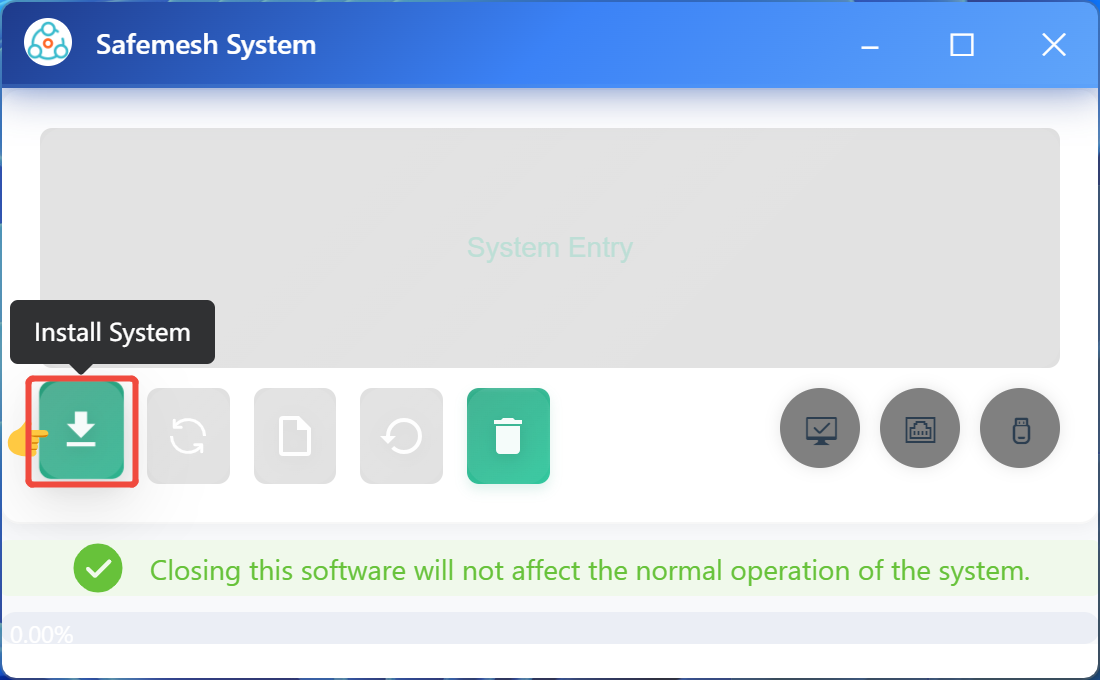
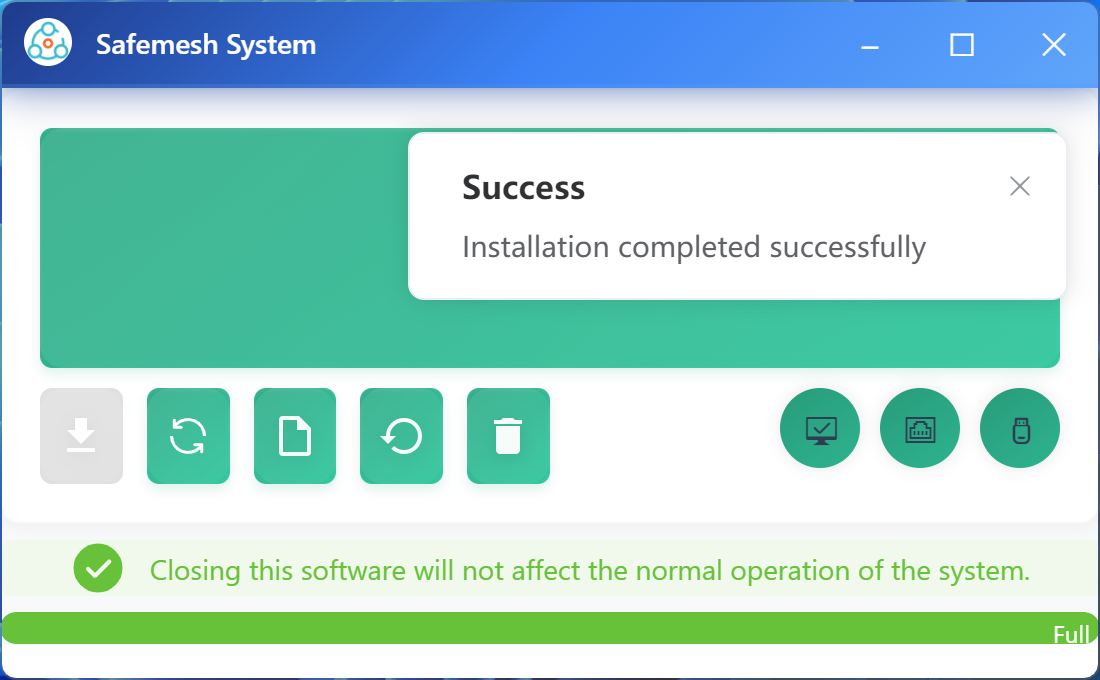
▶️ **Step 1**: Click Install System and wait for the installation to complete. ⚠️ Note: If there is no error message popping up, it means that the installation is in progress, please wait patiently.
[](http://13.222.61.26:6875/uploads/images/gallery/2026-01/g05image.png)
[](http://13.222.61.26:6875/images/gallery/2026-01/mU5image.png)
##### **VII. Initial Configuration Wizard**
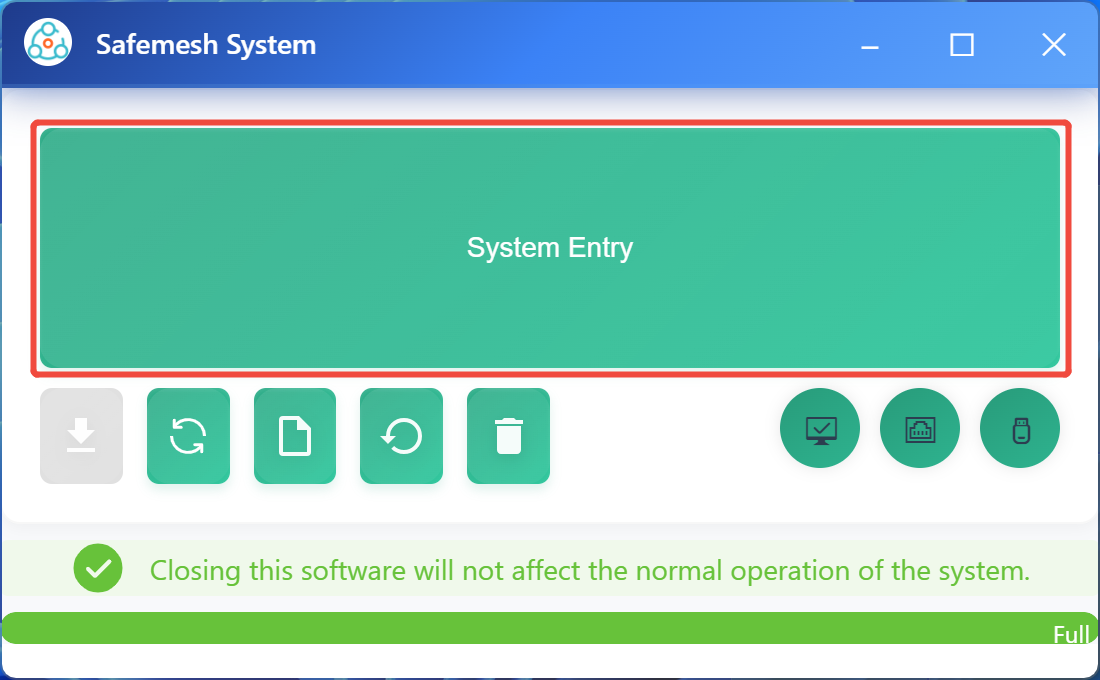
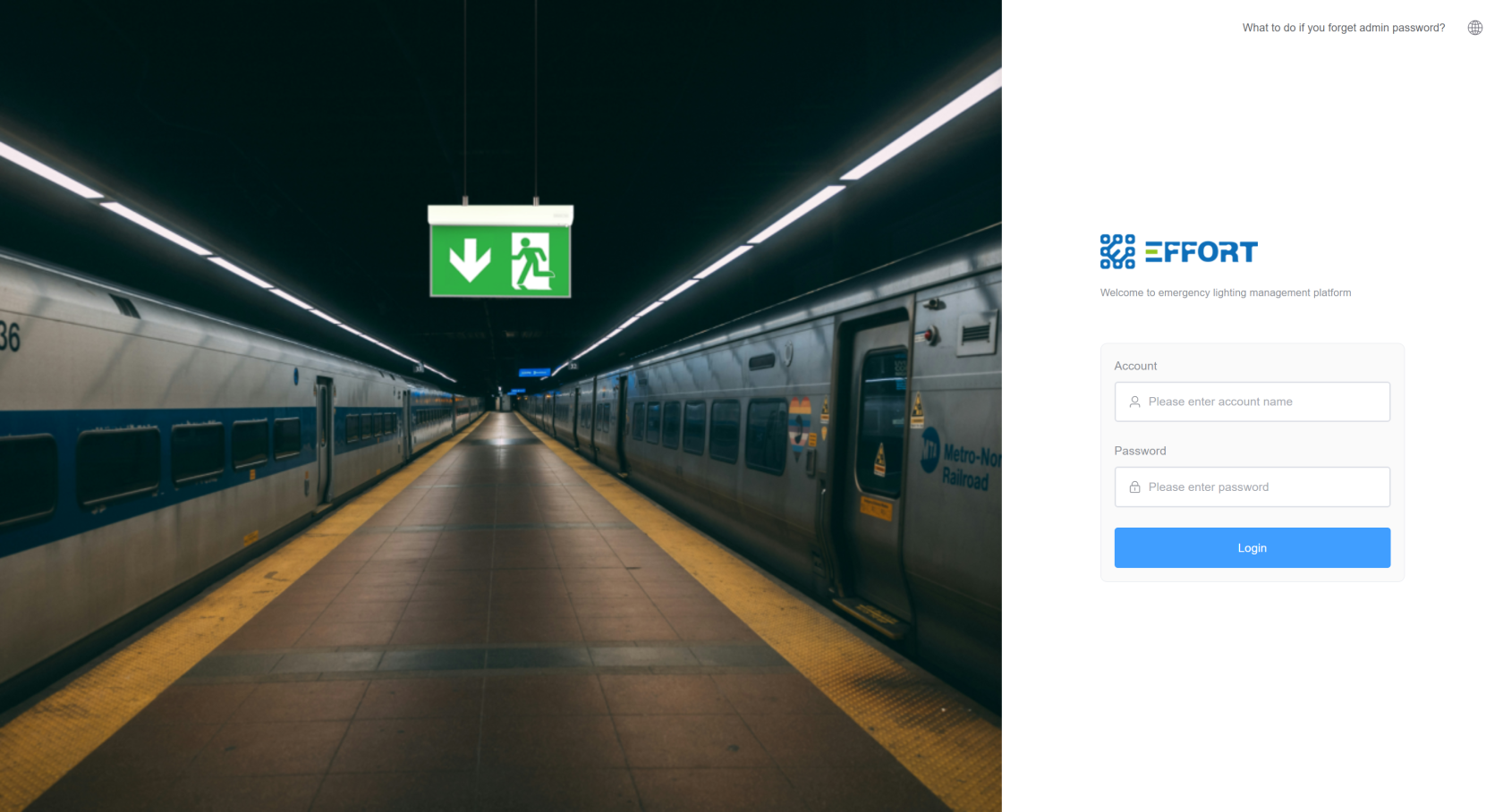
▶️ **Step 1**: Click on System Entry to **enter the system page**.
[](http://13.222.61.26:6875/uploads/images/gallery/2026-01/UoZimage.png)
[](http://13.222.61.26:6875/uploads/images/gallery/2026-01/rvPimage.png)
##### **VIII. Service Management and Verification**
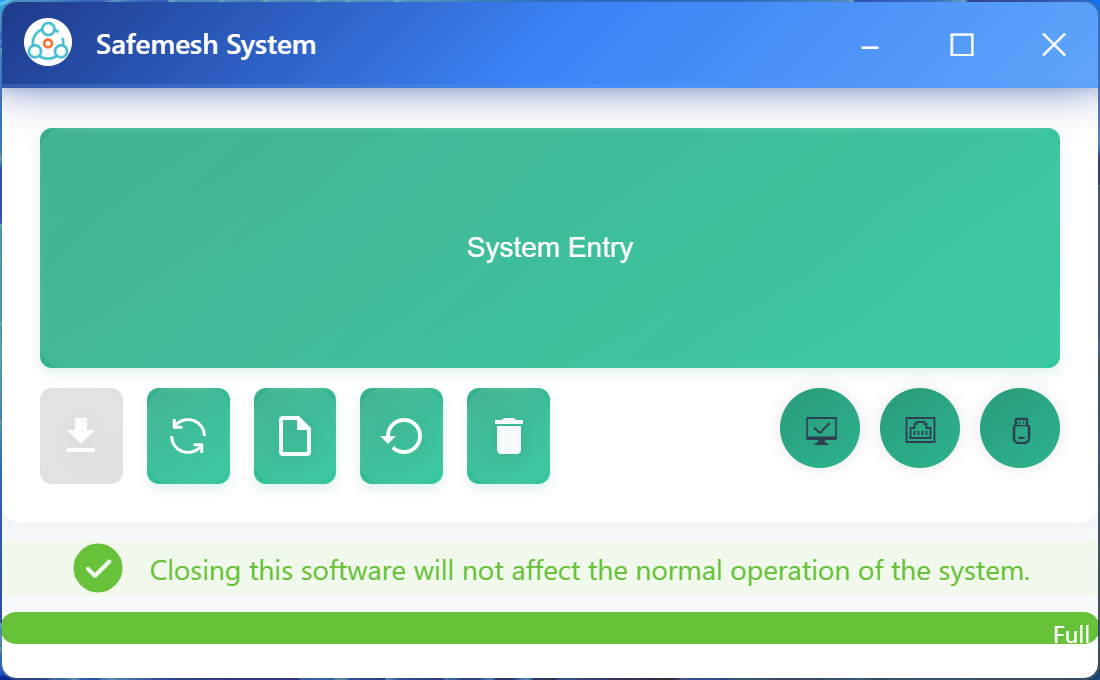
###### **8.1 Service Management Command** (Operation Method and Meaning of Buttons on the Main Interface of Installing Boot Software)
[](http://13.222.61.26:6875/uploads/images/gallery/2026-01/VIIimage.png)
| button | Meaning |
| Installation services |
| Restart the system |
| Back up your data |
| Import the backed up data file and reset the version |
| Uninstall the system |
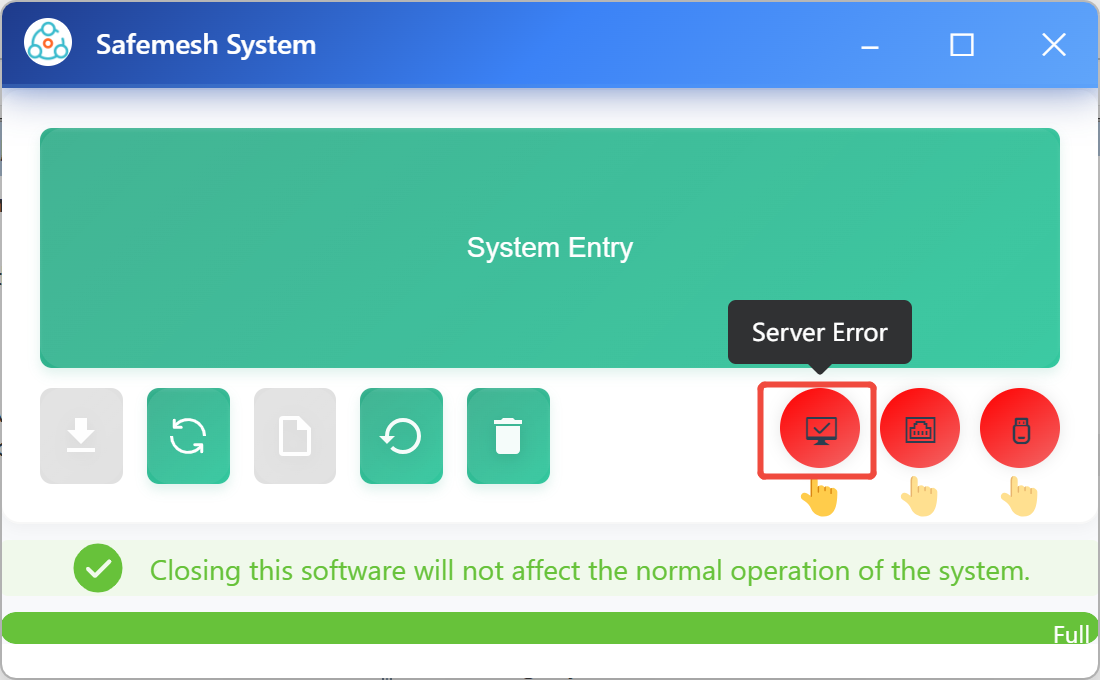
| Service status: Green: Normal operation; Yellow: Service abnormal |
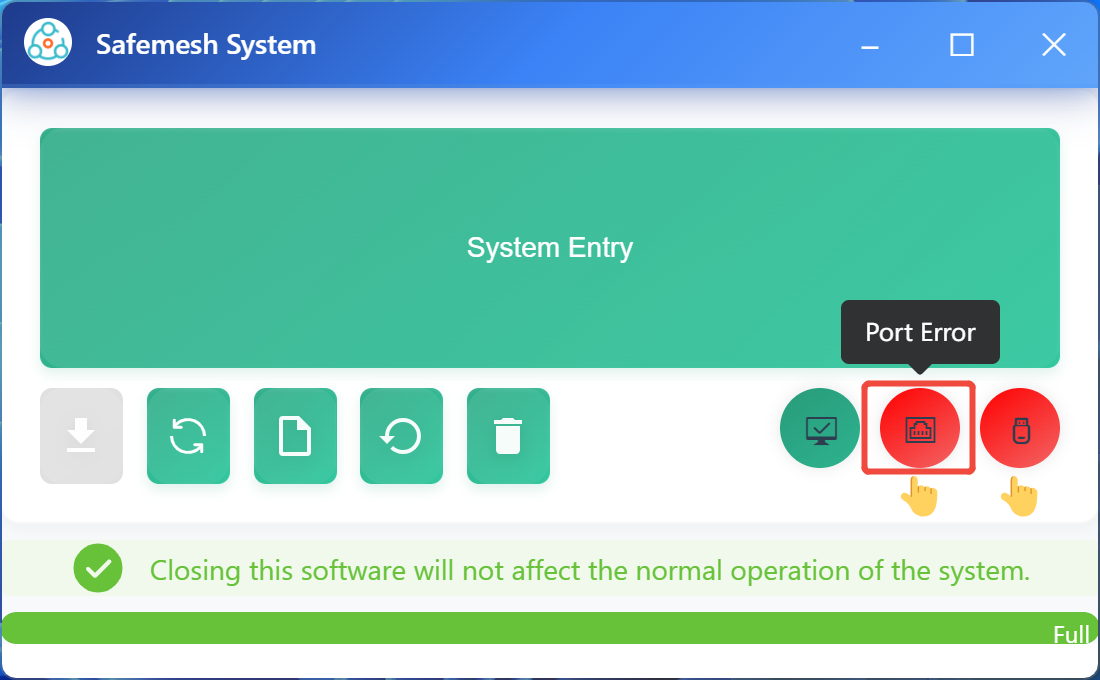
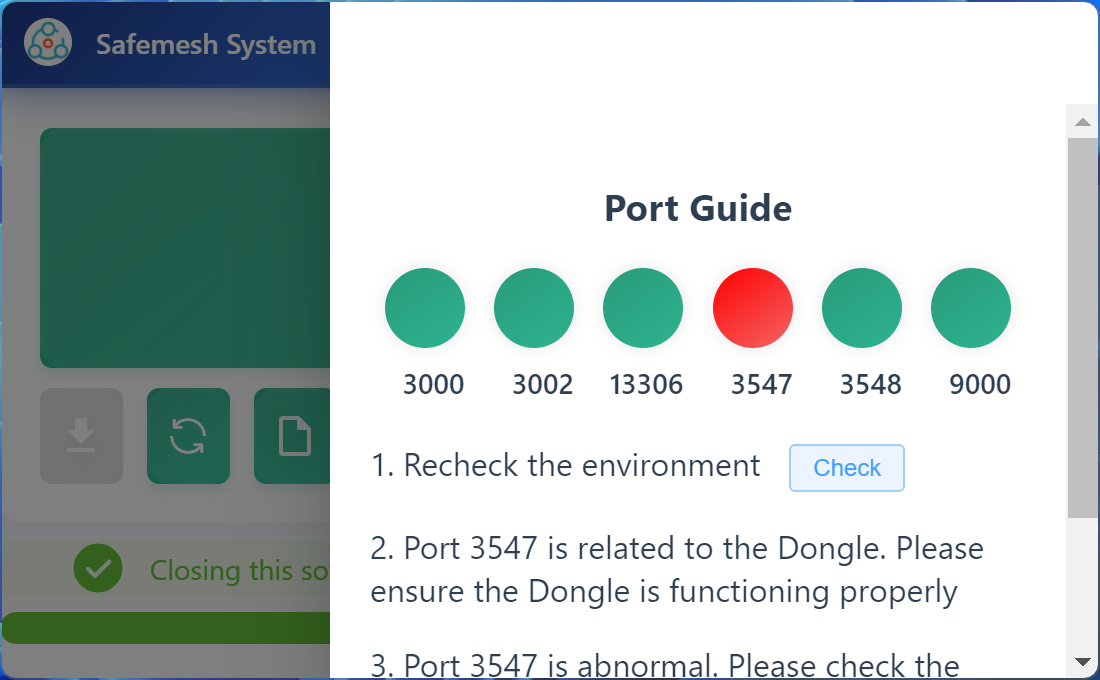
| Port status: Green: Normal operation; Red: Abnormal port |
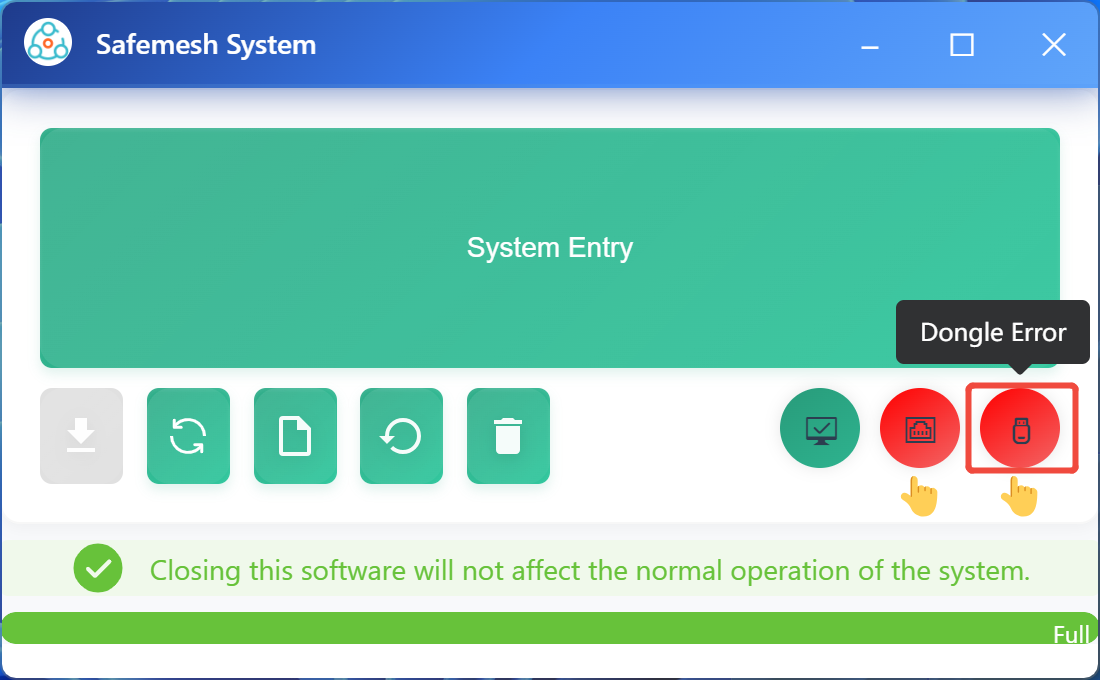
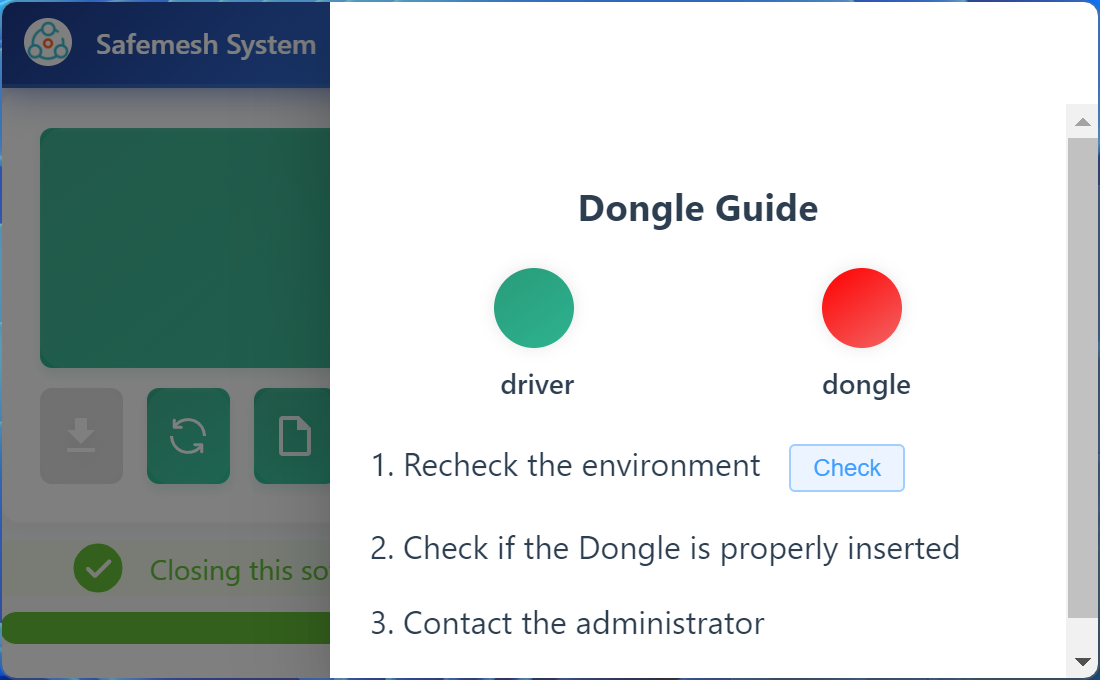
| Dongle drive status: Green: Normal operation; Red: Abnormal dongle drive |
| Click to open the system page |
###### **8.2 Health State Verification** (Method for Determining the State of the Main Interface of the Installation Boot Software and Method for Determining Related Faults)
* The port is wrong, click to see the solution
[](http://13.222.61.26:6875/uploads/images/gallery/2026-01/D1timage.png)
[](http://13.222.61.26:6875/uploads/images/gallery/2026-01/7R2image.png)
* Dongle error, click to see the solution
[](http://13.222.61.26:6875/uploads/images/gallery/2026-01/1Uaimage.png)
[](http://13.222.61.26:6875/uploads/images/gallery/2026-01/babimage.png)
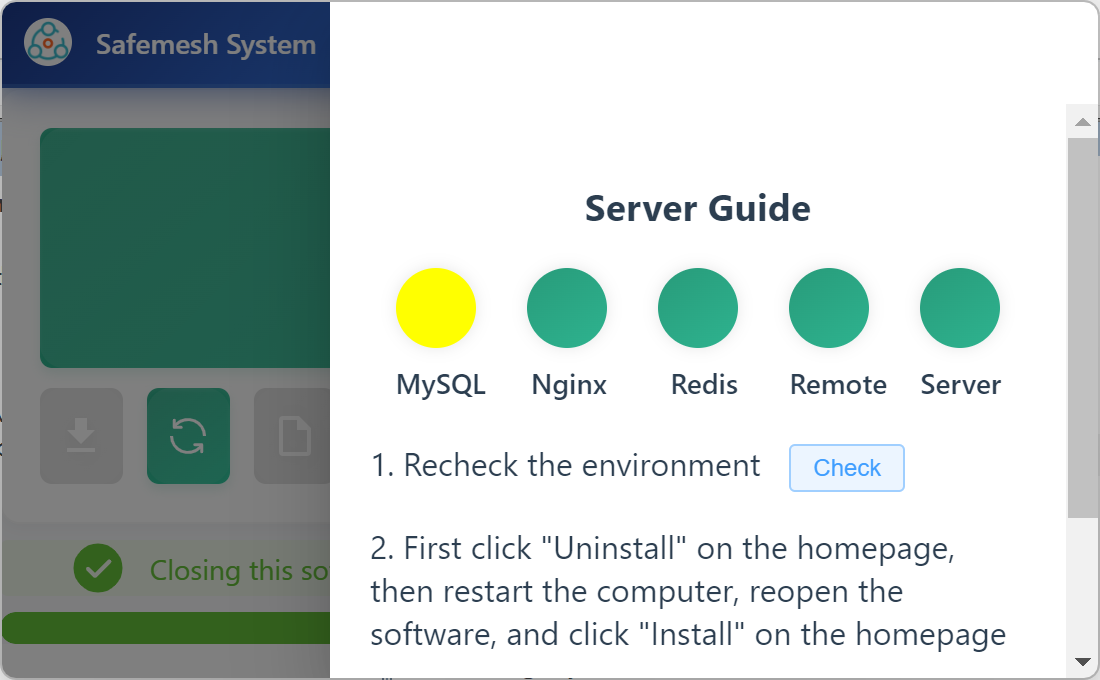
* Service error, click to view the solution
[](http://13.222.61.26:6875/uploads/images/gallery/2026-01/w6timage.png)
[](http://13.222.61.26:6875/uploads/images/gallery/2026-01/K8oimage.png)
##### **IX. Backup and Reset**
###### **9.1 Data backup**
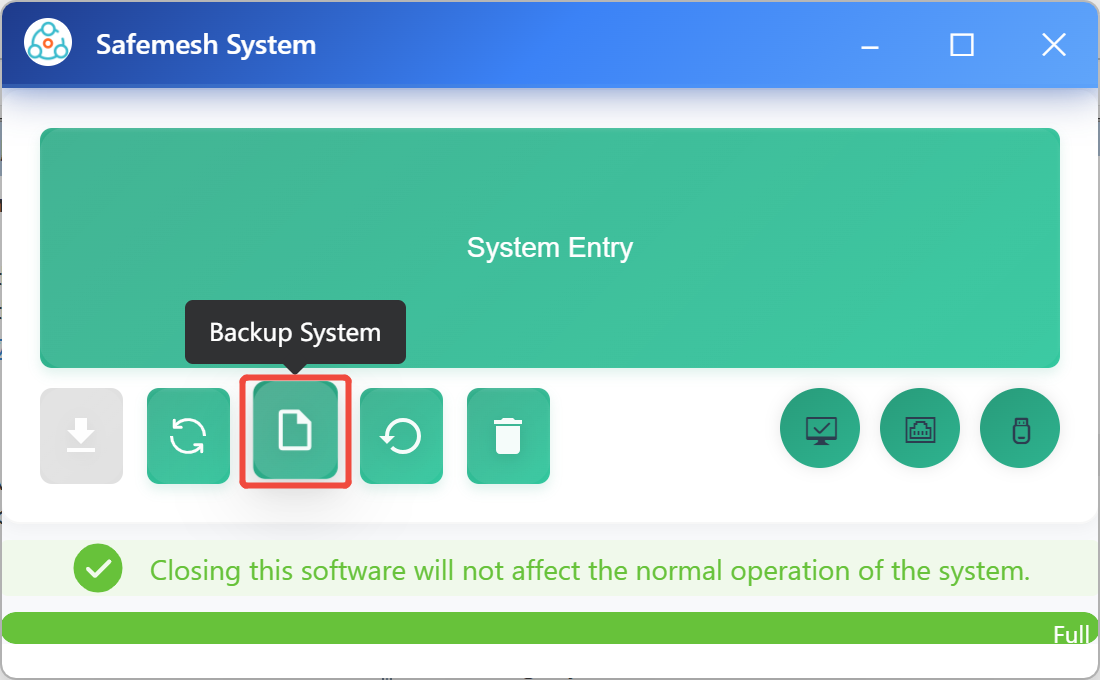
▶️ **Step 1**: Click on Backup System
[](http://13.222.61.26:6875/uploads/images/gallery/2026-01/QAOimage.png)
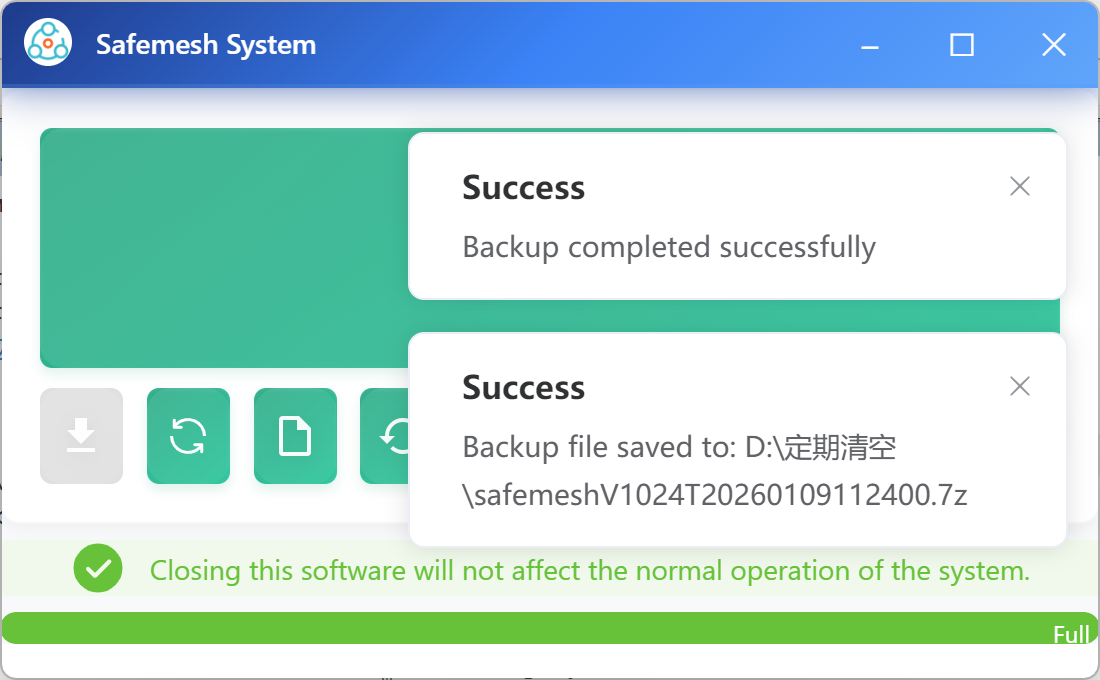
▶️ **Step 2**: Select the save path and wait for the save to succeed

[](http://13.222.61.26:6875/uploads/images/gallery/2026-01/o8Wimage.png)
###### **9.2 Resetting the System**
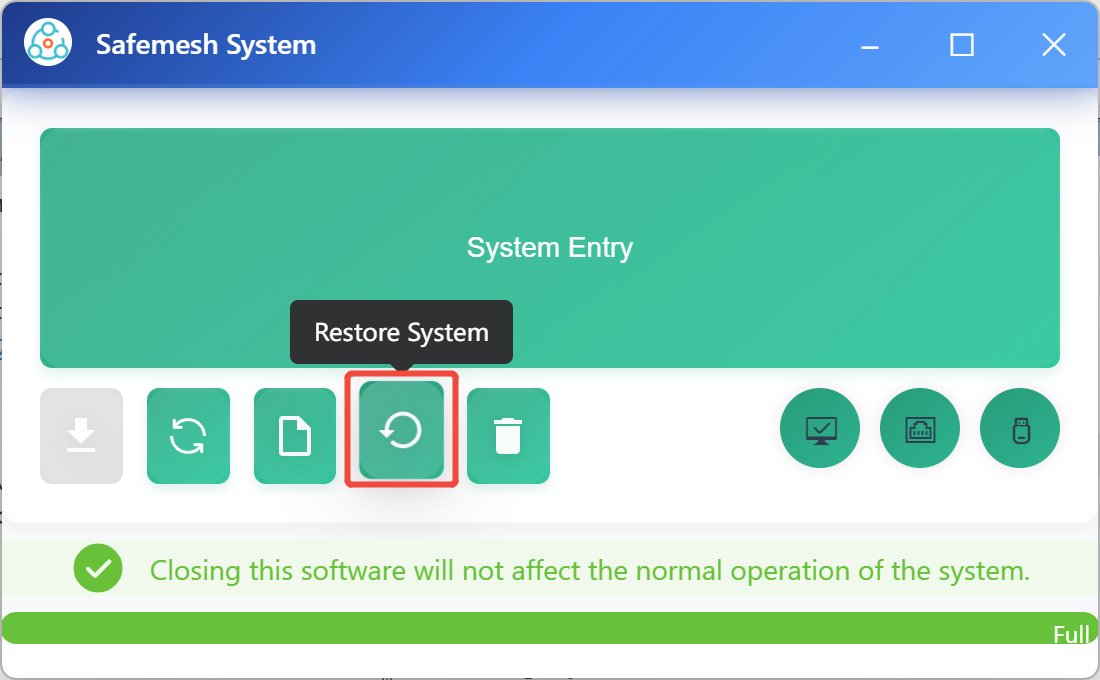
▶️ **Step 1**: Click Restore System
[](http://13.222.61.26:6875/uploads/images/gallery/2026-01/7Juimage.png)
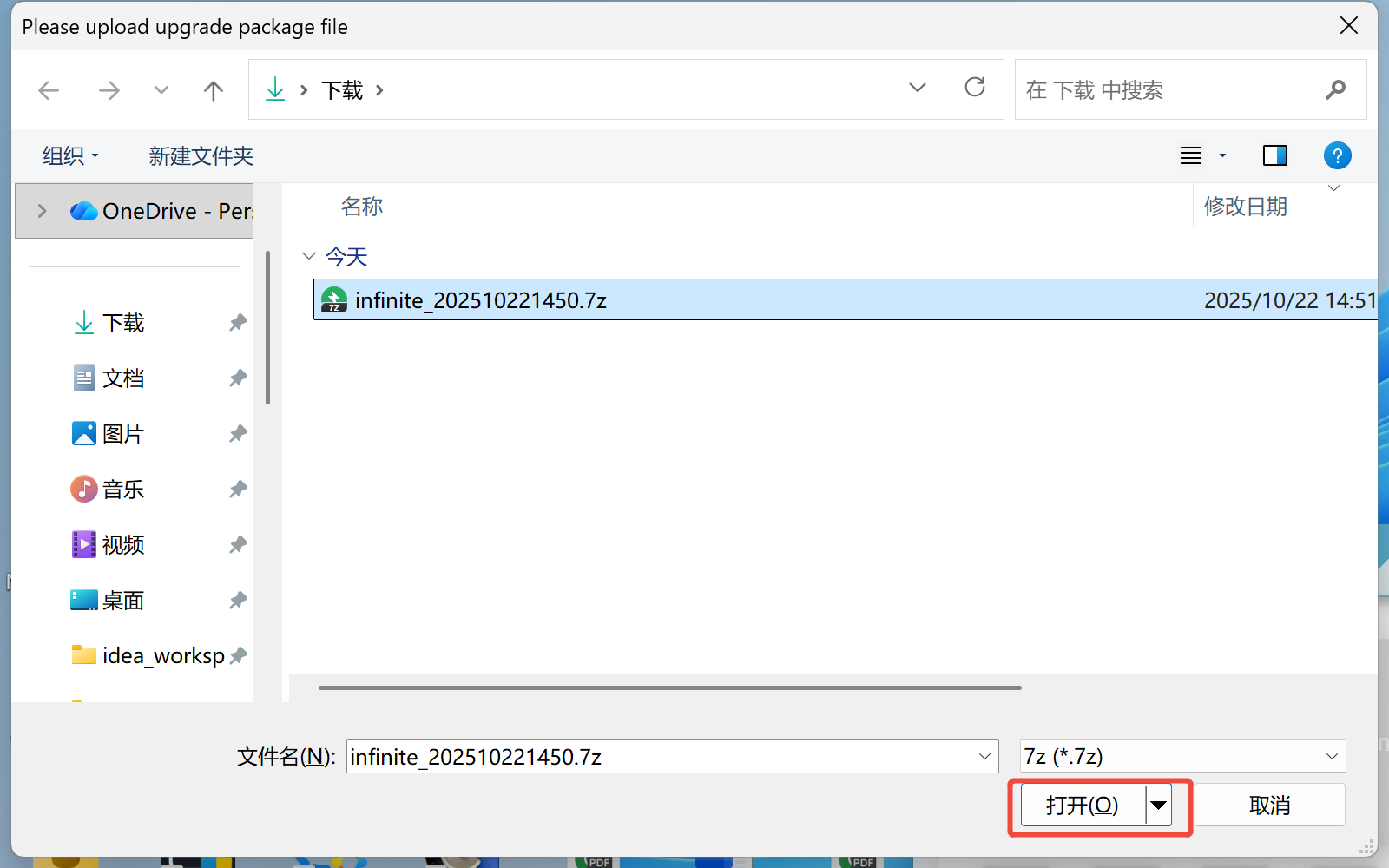
▶️ **Step 2**: Select the version you wish to reset and click Open.
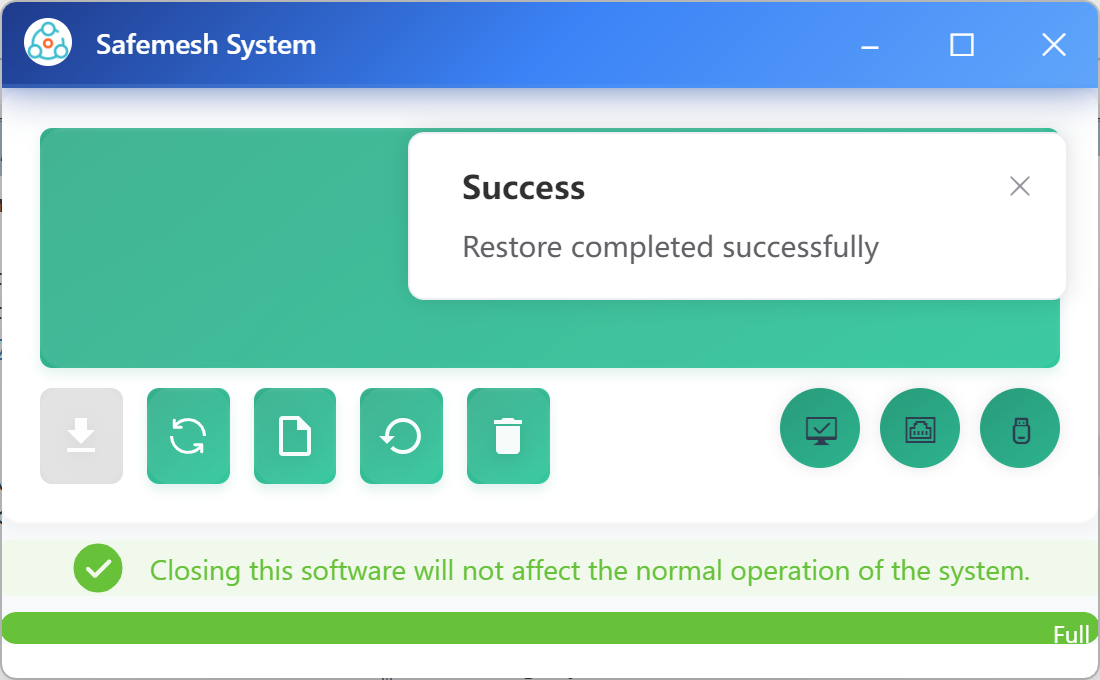
▶️ **Step 3**: Wait for the reset to complete
[](http://13.222.61.26:6875/uploads/images/gallery/2026-01/oXjimage.png)
###### **9.3 Uninstall Procedure** (Installation Boot Software Schematic Flow Chart)
###### **9.3.1 Uninstall the Service**
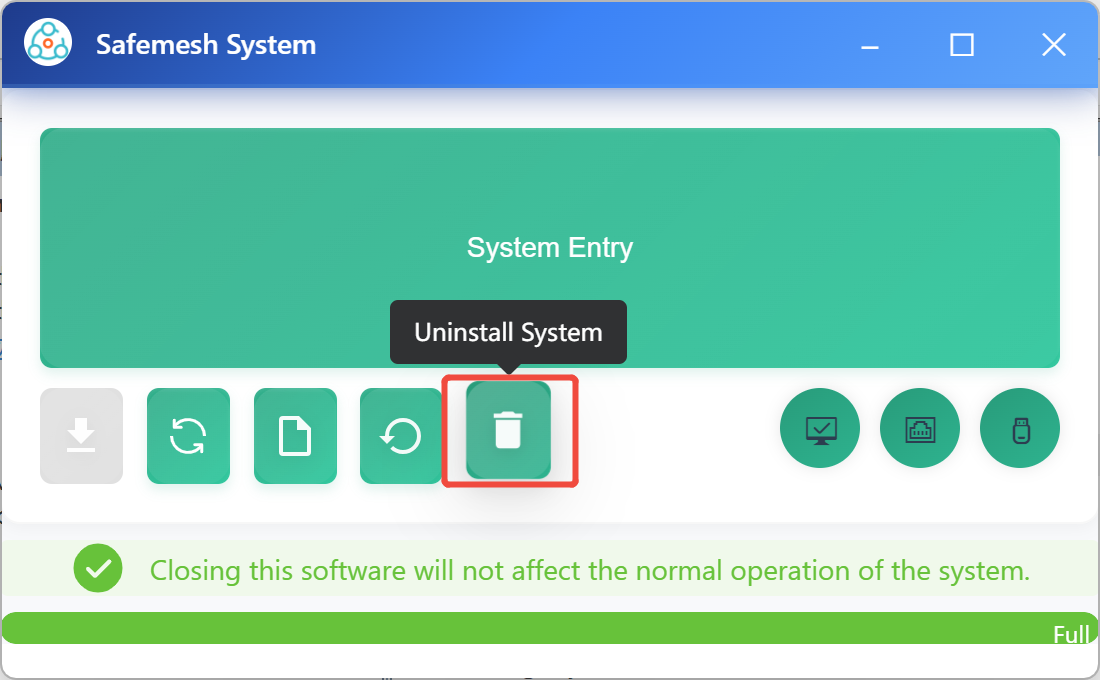
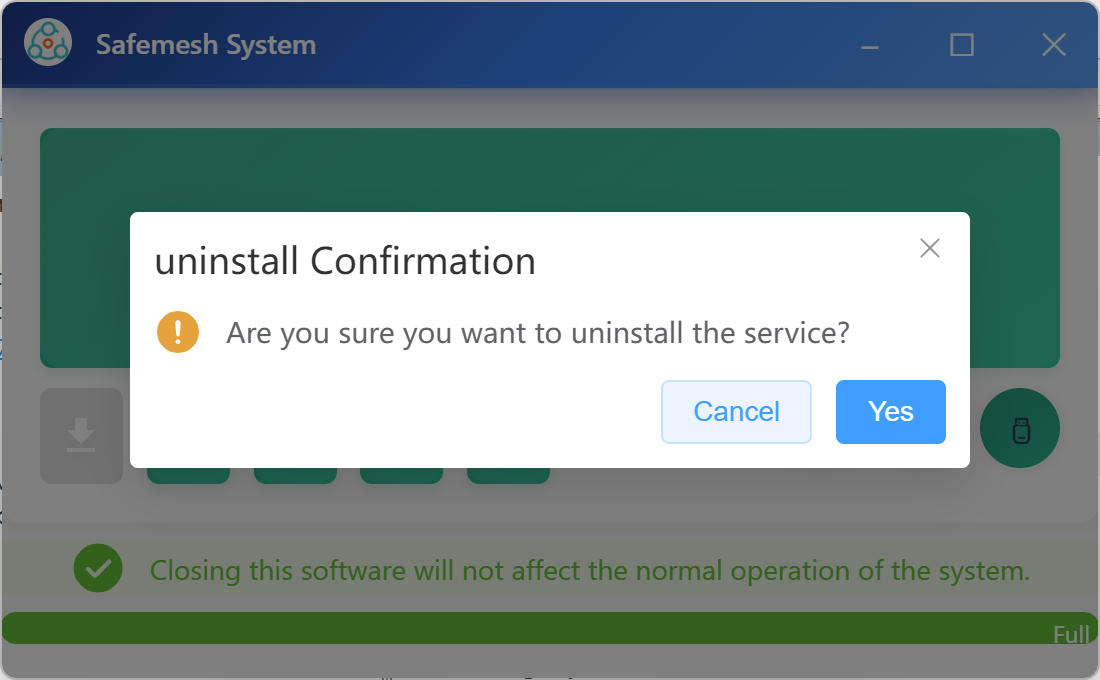
▶️ **Step 1**: Click Uninstall System, click yes
[](http://13.222.61.26:6875/uploads/images/gallery/2026-01/0Bfimage.png)
[](http://13.222.61.26:6875/uploads/images/gallery/2026-01/v12image.png)
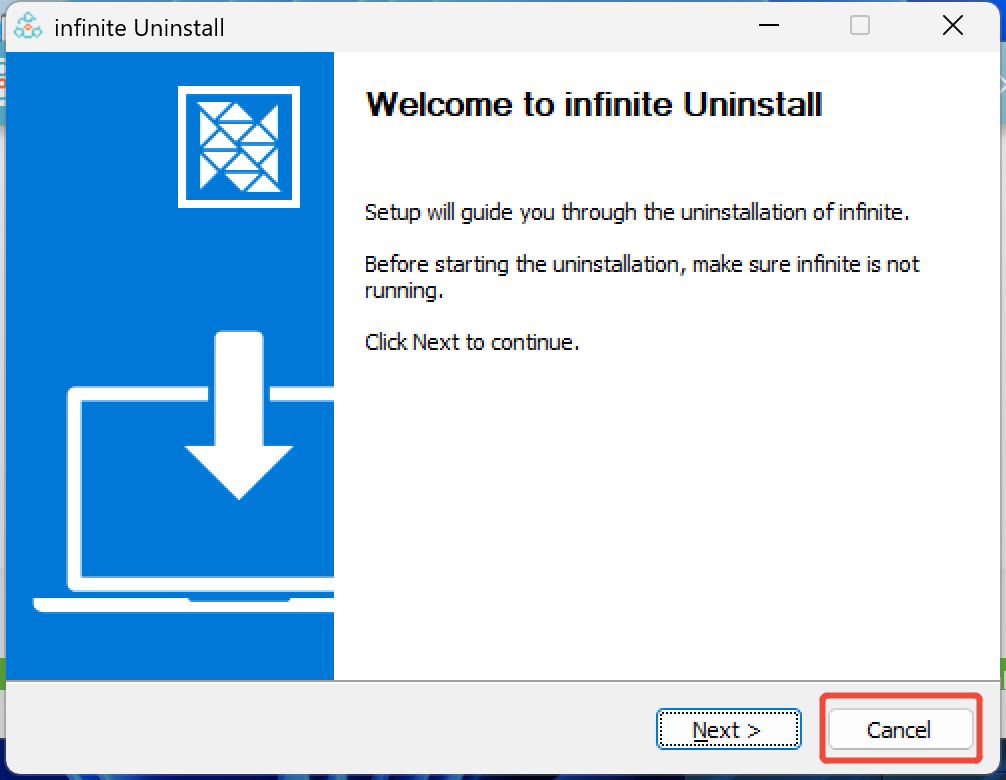
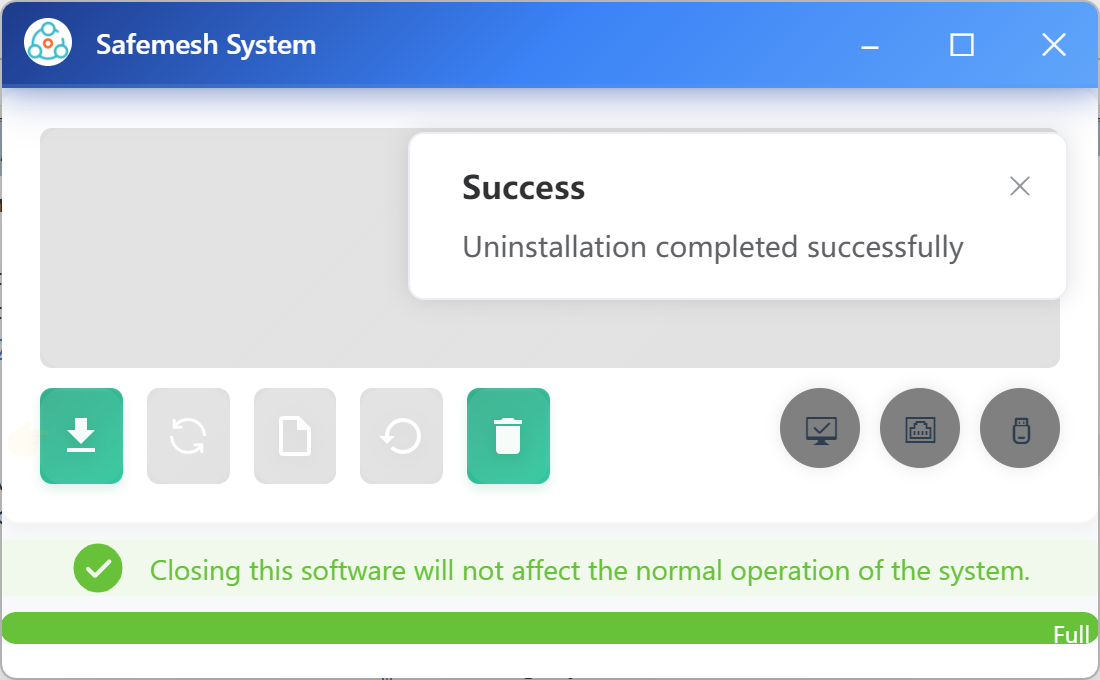
▶️ **Step 2**: The uninstall environment window pops up, click cancel, only the service will be uninstalled, click Install System to install it again.
[](http://13.222.61.26:6875/uploads/images/gallery/2026-01/rSOimage.png)
⚠️ Note: The current progress is only to uninstall the service, click Install System to install it again.
###### 9.3.2 Uninstalling the Environment
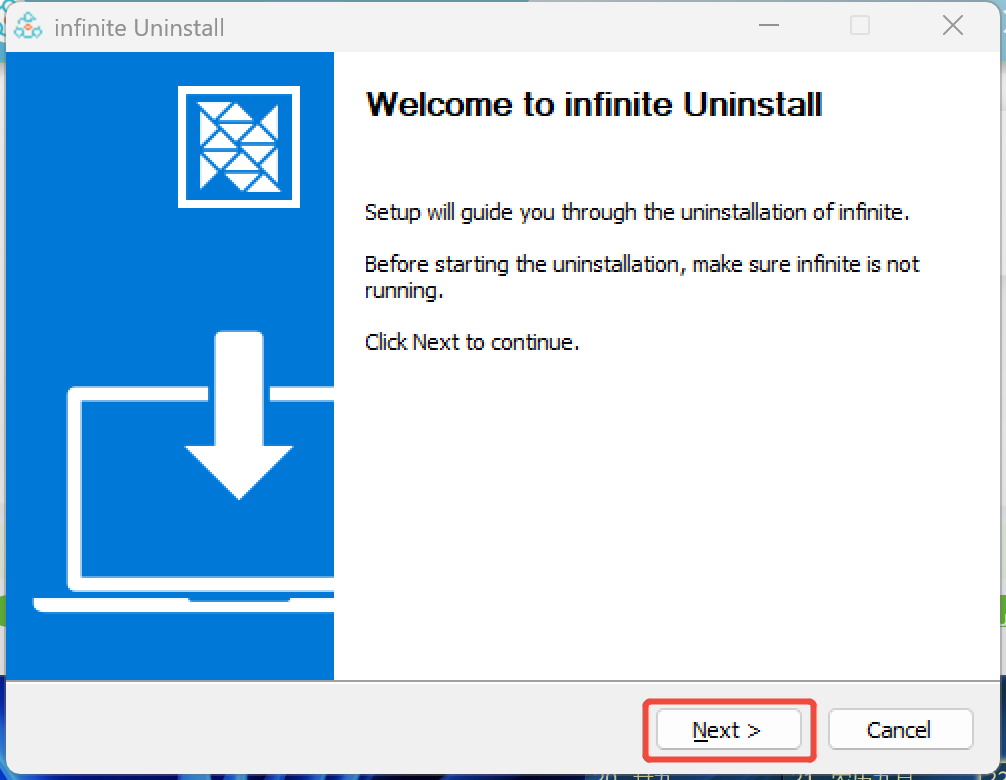
▶️ **Step 1**: Click Next in the pop-up uninstall window and wait for the uninstallation to complete.
▶️ **Step 2**: Click Finish to complete the uninstallation
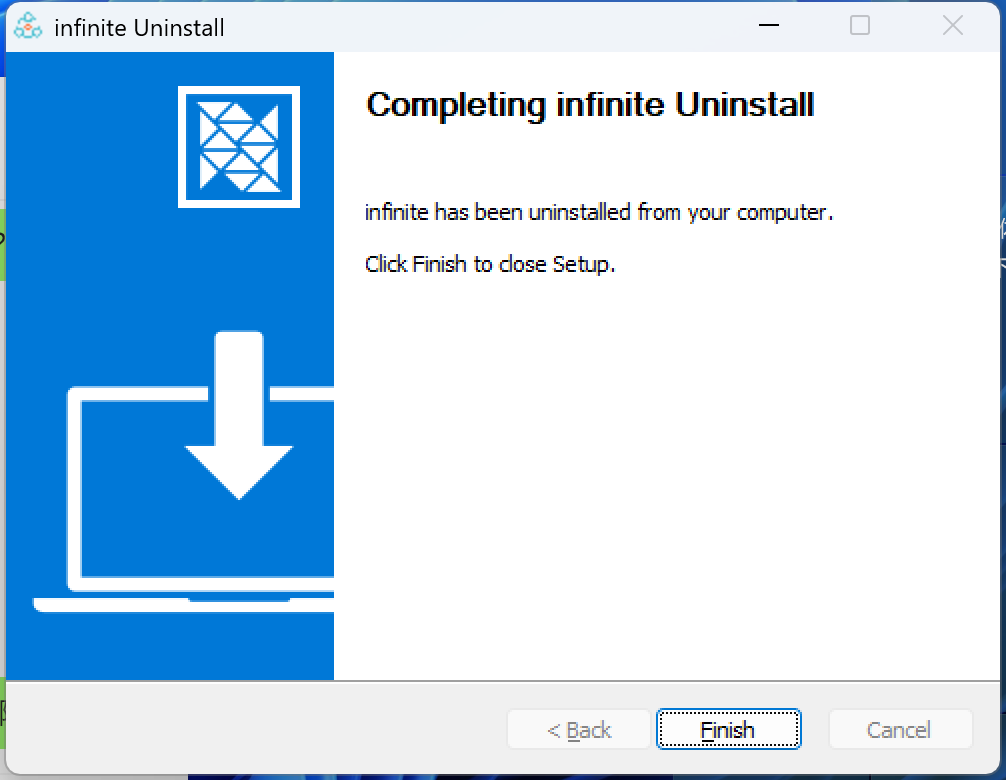
⚠️ Note: The current progress has been completely uninstalled, double-click the installation wizard infinite-win-1.0.16-x64.exe to install it again
##### X. Technical Support & Resources (Safelink has no content, for follow-up)
###### **10.1 Getting Help:**
* Technical Support Portal URL
* Supported email addresses
* Support phone/hotline number
* Working hours
* Online community/forum links
###### **10.2 Quick Links:**
* Provide the online document library URL if the document is online.
* List direct **download links** or find locations for all core documentation (e.g. product documentation download pages). **(Be sure to include links to all the documentation names mentioned earlier here!) )**
