
4.1 SLX-HT user manual
SLX-HT User Manual
This document is the user manual for the host component SLX-HT in the SafeLUX system
Document version:V1.0
Release Date:December 15, 2025
Publisher:EFFORT
Document Modification Record
| Version | Date | Modified content | Modifier |
|---|---|---|---|
| V1.0 | 20251215 | First creat | Mihcael |
1. Safety Instructions
:warning: Operating Temperature Range: -20°C to 55°C. Do not use the device outside this temperature range.
:warning: Avoid direct sunlight exposure to prevent housing deformation and internal component damage.
:warning: Keep the device clean and free of dust accumulation to avoid poor heat dissipation.
:warning: Use only power supply units that meet the specified requirements.
:warning: Installation must be performed by professional personnel. Installation by non-professionals may cause equipment damage or personal injury.
:warning: Do not use the device in humid, dusty, or corrosive environments.
:warning: Ensure the installation location is away from heat sources and flammable materials.
:warning: A reset operation will clear all connected devices. Perform this operation only when necessary and by professional personnel.
:warning: Implement electrostatic discharge (ESD) protection during installation.
2. Product Overview
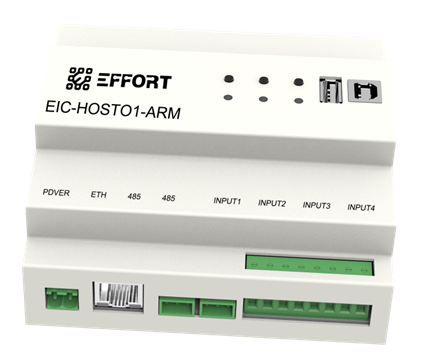
SLX-HT
The SafeLUX system host can be connected to a DALI converter through a network or 485 bus to control DALI emergency lighting fixtures or emergency drivers
Emergency Lighting addressable monitor center
Local web pages can be accessed to control devices
RS485 port expansion DALI bus
Rail mounted installation
24V DC power supply
1000 Mbps Ethernet
HDMI display driver
Status input port*4
No voltage output relay*5
USB Port*3
Model Description:
SLX:SafeLUX
HT:Host
Interface Definition and Layout Diagram of Indicator Lights and Buttons:
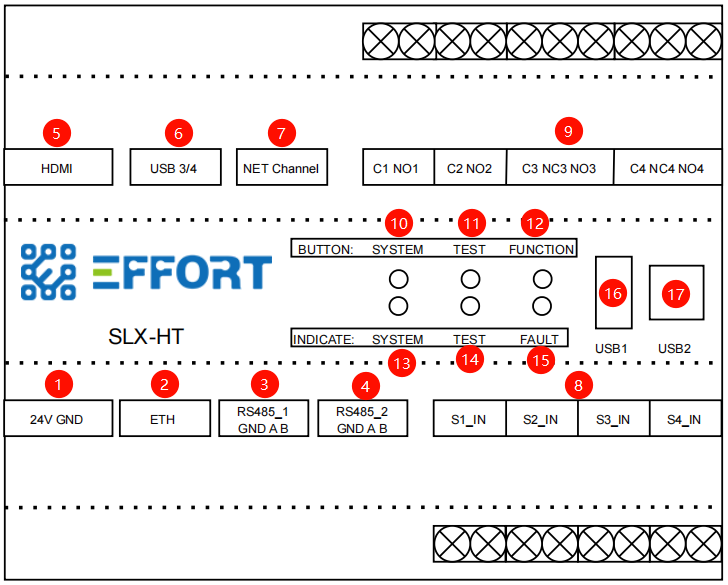
interface
| Interface No. | Interface Name | Terminal Type | Wiring Sequence Definition | Wiring Notes |
|---|---|---|---|---|
| 1 | Power Interface | 2-pin Plug-in Terminal Block (0.2-1.5mm²) | 1=DC+(24V)、2=DC-(GND) | Do not connect to AC power. |
| 2 | RJ45 Ethernet Port | RJ45 | Complies with T568B wiring | Use Cat5e or above shielded network cable, maximum length ≤ 100m. |
| 3 | RS485 Interface 1 | 3-pin Plug-in Terminal Block (0.2-1.5mm²) | 1=GND、2=A、3=B | A/B wires must not be reversed; add 120Ω terminal resistors at both ends of the bus. |
| 4 | RS485 Interface 2 | 3-pin Plug-in Terminal Block (0.2-1.5mm²) | 1=GND、2=A、3=B | Parallel with RS485 Interface 1 |
| 5 | HDMI Interface | HDMI TypeA | - | - |
| 6 | USB Host Interface*2 | USB-A | - | - |
| 7 | Network segment address encoders | 0-9 encoded digital encoder | - | - |
| 8 | Digital Input | Screw Terminal Block (0.5-2.5mm²) | - | - |
| 9 | Relay Output | Screw Terminal Block (0.5-2.5mm²) | - | - |
| 10 | System Button | - | - | - |
| 11 | Test Button | - | - | - |
| 12 | Function Button | - | - | - |
| 13 | System Indicator Light | - | - | - |
| 14 | Test Indicator Light | - | - | - |
| 15 | Fault Indicator Light | - | - | - |
| 16 | USB Host Interface | USB-A | - | - |
| 17 | USB Slave Interface | USB-B | - | - |
3. Mechanical Dimensions & Packaging Specifications
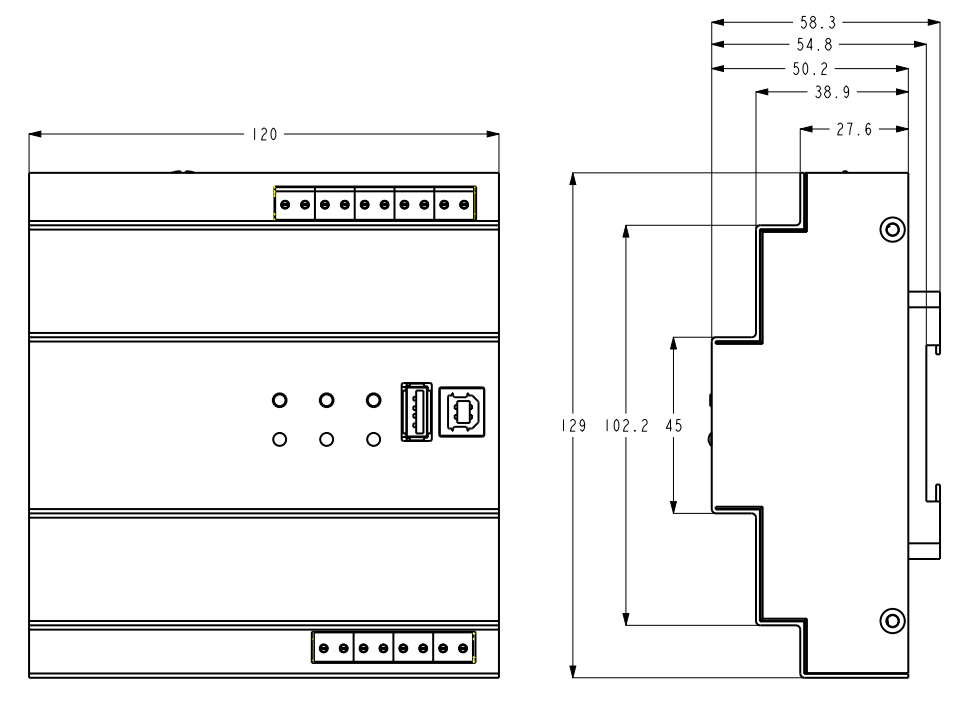
SLX-HT_size
unit:mm
Weight per pc:
Packaging dimensions:
Packing list:
4. Installation Guide
4.1 Unboxing Inspection
Check the package contents: SLX-HT, installation accessories, and other necessary components.
Inspect the product appearance for damage.
4.2 Installation Environment Requirements
Ambient Temperature: -20℃ to 55℃.
Ambient Humidity: 10% ~ 90% RH (no condensation; do not install in humid environments such as flooded areas of basements).
Installation Location: Keep away from heat sources, avoid direct sunlight, and stay clear of strong electromagnetic interference sources (e.g., frequency converters, high-power motors, high-voltage cables) with a minimum distance of ≥ 1 meter.
Installation Method: Only supports 35mm standard DIN rail mounting.
Rail Thickness: 1.0 ~ 1.5mm; the bayonet must be securely fastened during installation.
Network Environment: The host network level should be greater than or equal to the master converter's network level. It is recommended that the host and converter be at the same network level. A local area network (LAN) with DHCP assignment capability is advised.
4.3 Power Supply and Cable Adaptation Requirements
4.3.1 Power Supply Adaptation Requirements
SLX-HT must use a DC 24V power supply that meets the following parameters:
- Output Voltage: DC 24V (allowable range: 22.8V - 25.2V);
- Rated Power: ≥20W (to avoid device restart due to insufficient power supply);
- Power Supply Type: AC/DC adapter or switching power supply complying with safety standards;
- Interface Matching: Must be used with 2-pin plug-in terminal blocks (pin spacing 5.08mm). Gold-plated terminals are recommended to reduce contact resistance.
4.3.2 Cable Selection Requirements
Cables for different interfaces shall be selected in accordance with the following specifications to avoid signal interference or transmission failures:
| Interface Type | Cable Specification Requirements | Maximum Transmission Distance | Additional Requirements |
|---|---|---|---|
| RJ45 Ethernet Port | Cat5e or higher shielded network cable (CAT5e SF/UTP) | ≤100 meters | Waterproof cables shall be used for outdoor wiring |
| RS485 Interface | Twisted pair shielded cable (RVSP 2×0.75mm²) | ≤1200 meters | The shield layer shall be single-ended grounded (ground resistance ≤4Ω) |
| HDMI | High-speed copper cable (HDMI certified) | ≤5 meters | |
| USB | Standard copper cable (AWG28-24 gauge) | ≤5 meters | The cable shall include four cores: D+, D-, VCC and GND; Shielded cables shall be used for lengths exceeding 3 meters |
Note: For detailed technical parameters (such as power supply parameters, RS485 technical parameters, etc.), refer to the 《SLX-HT datasheet》.
4.4 Installation Steps and Wiring Instructions
Select the installation location: ensure compliance with environmental requirements.
Mount the host on the guide rail.

install
Connect the host to the network router or the switch under the router via a network cable.(If it is necessary to use the network function of the host or connect to the master converter via the network)

net_connect
Connect to the sub converter via a 485 cable. (If it is necessary to connect to the sub-converter via 485)

485_connect
If an external HDMI display is required, then connect the display to the host via an HDMI cable.

hdmi_connect
If the HDMI display is USB-powered (supply voltage 5V, operating current not exceeding 1A) and supports touch signal transmission via USB, connect the display's power interface to the host's USB port. If the display does not support touch, USB power supply, or its current exceeds 1A, please power the HDMI display independently, then control the HDMI display by connecting an external USB mouse and keyboard to the host's USB port.

usb_connect
If the master converter and the host are in the same LAN segment, you can set the network segment address encoders of the master converter and the host to the same value to enable the network automatic pairing function. A.quick pairing instructions for master converters

address_switch
Connect the output interface of the power supply to the host's power supply port.

power_connect
Power on
Operate the host directly through the display. Alternatively, refer to Section 5.5 Network_Instructions to access the host via a computer browser.
5. Operation Instructions
5.1 Key Functions
| Key | Action | Description |
|---|---|---|
| system | Long Press | Reset |
| test | Double Press | All devices enter function test |
| test | Long Press | All devices enter duration test |
| function | Single Press | All devices under system execute the Identify command |
| function | Long Press | 485 bus scanning sub converter |
5.2 Indicator Light Status
| Indicator | Status | Description |
|---|---|---|
| system | Green light solid on | Working normally, no data interaction on 485 bus |
| system | Green light turns off for 100ms once | Working normally, data interaction on 485 bus |
| system | Green light off for 100ms, on for 500ms | System key long press activated |
| system | Green light off for 500ms, on for 500ms | 485 bus searching for sub converters |
| system | Red light on for 250ms, off for 250ms | Sub converter communication abnormality |
| test | Green light off for 1000ms, on for 1000ms | Some devices under duration test |
| faule | Red light solid on | Some devices faulty |
5.3 Digital Input Ports
The host supports detection of 4 input ports, and the functions of the input ports can be configured via the WEB interface.
5.3.1 List of Supported Functions for Input Ports
| Input Port Configuration |
|---|
| Not configured |
| Rest Mode |
| Maintained OFF |
| Maintained ON |
| Start function test |
| Stop duration test |
| External failure |
5.3.2 Hardware Connection Method of Input Ports
External dry contact signals such as buttons can be connected to the input terminals for detecting external events (e.g., dry contact signal output of fire alarms). Among them, two groups are on-off type inputs, and the other two groups are differential loop monitoring type inputs.
5.3.2.1 On-Off Type Inputs
Input1/Input2 are on-off type inputs.
For on-off type inputs, simply connect external switches directly to the input terminals.
The schematic diagram is as follows:

input_connect_direct
5.3.2.2 Differential Loop Monitoring Type Inputs
Input1/Input2 are inputs equipped with differential loop detection (quiescent current). For input terminals with differential loop detection (quiescent current), a 1kΩ resistor needs to be connected in series in the loop.
The schematic diagram is as follows:

input_connect_loopmonitor
5.4 Relay Output Ports
- The host is equipped with 4 groups of relay output ports.
- External devices such as buzzers and indicator lights can be connected to the relay output ports for output control of the host's dry contact signals.
- The relay output is of the voltage-free output type, and the connected external devices require independent power supply.
- The host can be configured with trigger events to enable relay outputs, and the number of the relay that becomes active when the trigger event occurs can also be configured.
For example, if an output port is configured to be enabled when a device enters duration test mode, and an indicator light is connected to the corresponding relay terminal, the indicator light will turn on when a device in the system undergoes duration test.
The trigger events that can be assigned to the relay output ports are as follows:
| Relay Output Port Configuration |
|---|
| Not configured |
| One device failure |
| Three device failure |
| Communication failure |
| Duration test |
| External failure |
| Failure function test |
| Failure duration test |
5.5 Network Instructions
5.5.1 Description of Host Network IP and Parameter Settings
The host supports two methods for network IP and parameter settings:
DHCP for network IP and parameter assignment
Static settings for network IP and parameter configuration
DHCP is the default method for host network IP and parameter settings.
If you need to modify the host's network IP and parameters, refer to 5.6Host Network Parameter Configuration.
DHCP automatically assigns network IP and configuration parameters to the host via a router. It requires no manual settings from the user and enables quick network access for the device.
Static settings require the user to manually enter parameters such as IP address, subnet mask, network gateway address, and DNS server for network configuration.
:warning: If you are not familiar with network principles and allocation methods, please use the default DHCP method.
5.6 Host Network Parameter Configuration.
5.6.1 Modifying Directly via Touch Screen
This method is applicable to the hardware connection where an HDMI touch screen is externally connected to the host. You can operate the host directly through the HDMI touch screen. The host's network parameters can be modified directly in the Configuration->Network interface.
5.6.2 Modifying via WEB Page Access
This method is applicable to the hardware connection where the host is used without an externally connected HDMI touch screen. You need to access the host's WEB page via the network to modify the network parameters.
5.6.2.1 Finding the Host IP via Router Management Background
First, ensure the host is connected to the router via an Ethernet cable and powered on.
The host's network is set to DHCP (default network setting)
Then log in to the router management background, locate the device with the hostname SLX-HT-XXXX, and record its IP address.

router_management_backend
:warning:The methods for logging in to the management background of different routers vary, and you need to consult the network administrator for the specific method.
Host network set to static IP
Directly record its static IP address.
:warning: If you have forgotten the network settings of the host, please reset the host directly to ensure its network setting is set to DHCP.
5.6.2.2 Accessing the Host's Configuration Page via Browser
Ensure the computer and the host are on the same local area network (LAN). Open a browser on the computer and enter the host's IP address recorded in Section 5.6.2.1, and the following interface will be displayed in the browser:

host_management_backend
The host's network parameters can be modified directly in the Configuration->Network interface.
6. Testing and Verification
This product is the host of the SafeLUX system, so it needs to be used in conjunction with the master converter or sub converter of the SafeLUX system. Connect to the master converter through a network cable, or connect to the sub converter through a 485 bus. And control the DALI bus through a converter to control DALI terminals or obtain DALI terminal information.
After adding a converter to the SafeLUX system, you can control the converter and the DALI lamps mounted under the converter DALI bus on the SafeLUX system page.
For more information, please refer to the SafeLUX host user manual, SafeLUX system user manual, and other related documents.
Basic Verification Steps:
Hardware connect
Power on the system
Log in to the host system
Access the device management page
Add the master converter (Add master converter via network or sub converter via 485 Bus)(If the host and the master converter are on the same local area network (LAN), automatic converter addition is available)
Perform other operations
7. Troubleshooting
Troubleshooting Based on Indicator Light Status and Description
| Phenomenon | Troubleshooting Directions |
|---|---|
| System indicator light: red light on for 250ms, off for 250ms | Sub converter communication abnormality: 1. Check if the 485 bus connected to the sub converter is properly connected. 2. Check if the sub converter is powered off or abnormal. |
| Fault indicator light: red light always on | Check if there is any device failure, loss, or converter loss in the system. |
7.2 Common Questions Q&A
Q:What if the host IP changes after restart?
A:Set IP binding in the router to associate the gateway MAC with a fixed IP.
8. Technical Support and Maintenance
Technical support email:technical@effortled.com
Daily maintenance cycle (clean the dust from the gateway's heat dissipation holes every 3 months; check if the wiring terminals are loose every 6 months);
Firmware upgrade method (Host WEB page -> Configuration -> Update -> Upload firmware);
No comments to display
No comments to display